How do I put a .jpeg embed in an email?
1. Create the email in a Template (see article How do I create and send messages?).
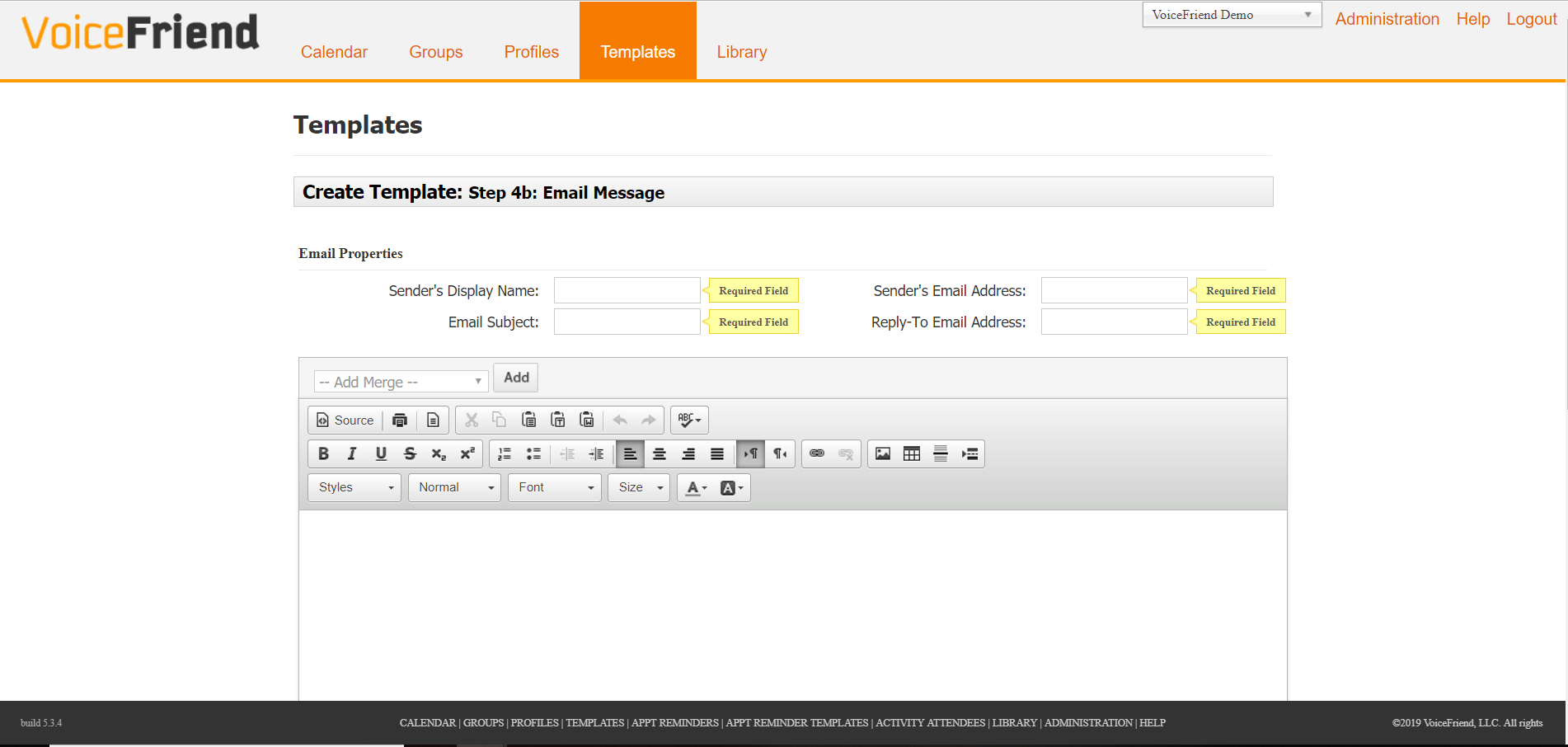
2. Click the cursor at the spot in the email where you want to put the image.
3. Click on the the leftmost icon in the rightmost group to insert an image into an email.

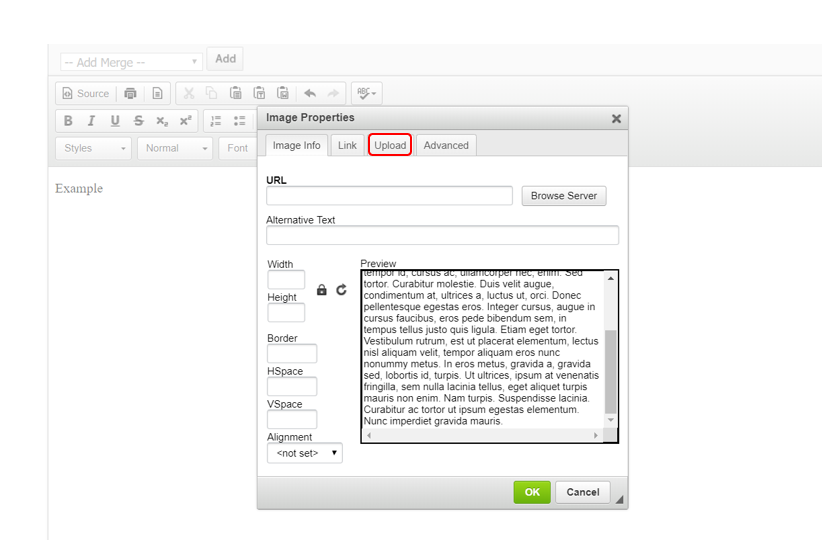
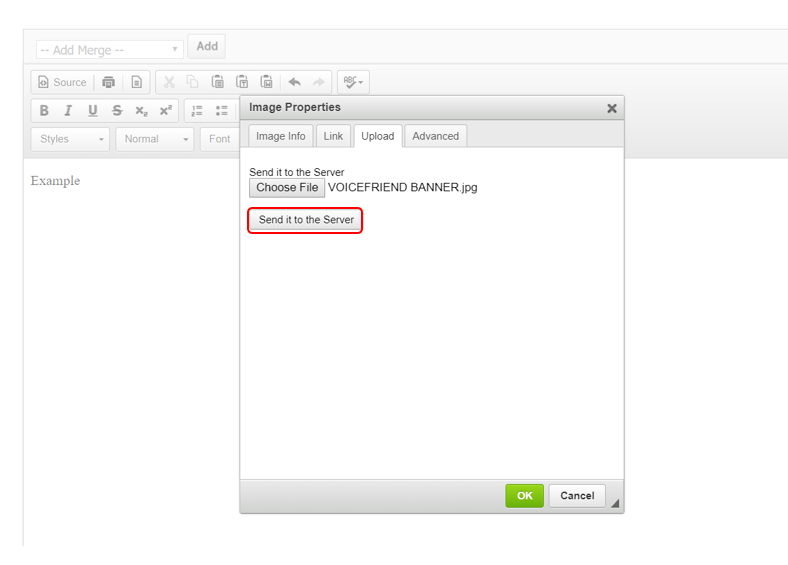
4. Do not worry about the preview on this screen, click on the Upload tab where you will choose what .jpeg file you would like to embed in your email.
5. Click Choose File and select the .jpeg file you want to include and then click Open.
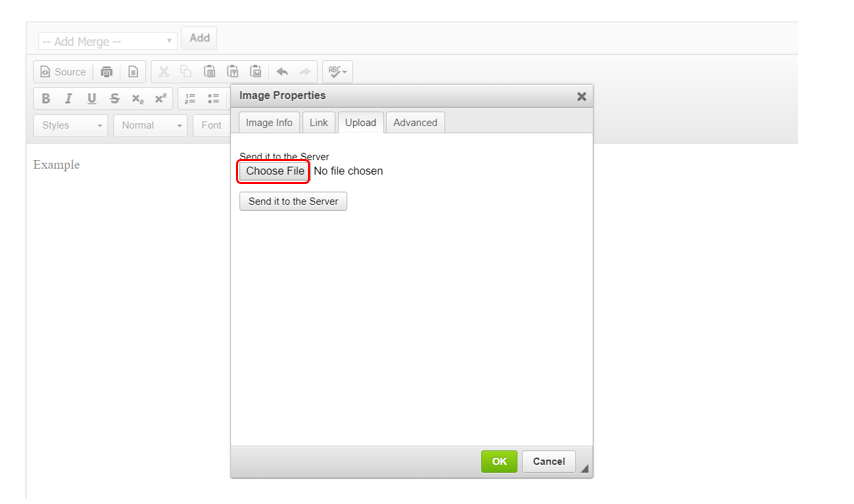
7. Click on Send to Server (make sure the image you want in your email is shown next to the right of Choose File).
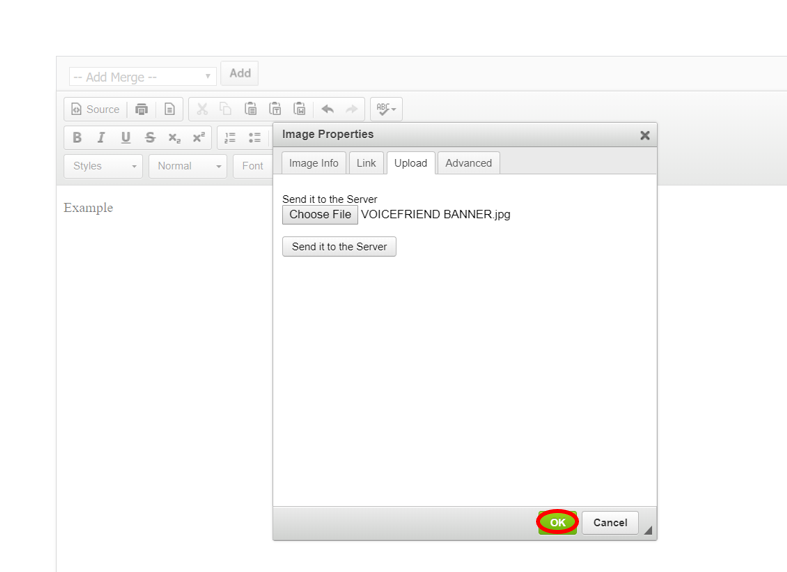
8. Click OK.
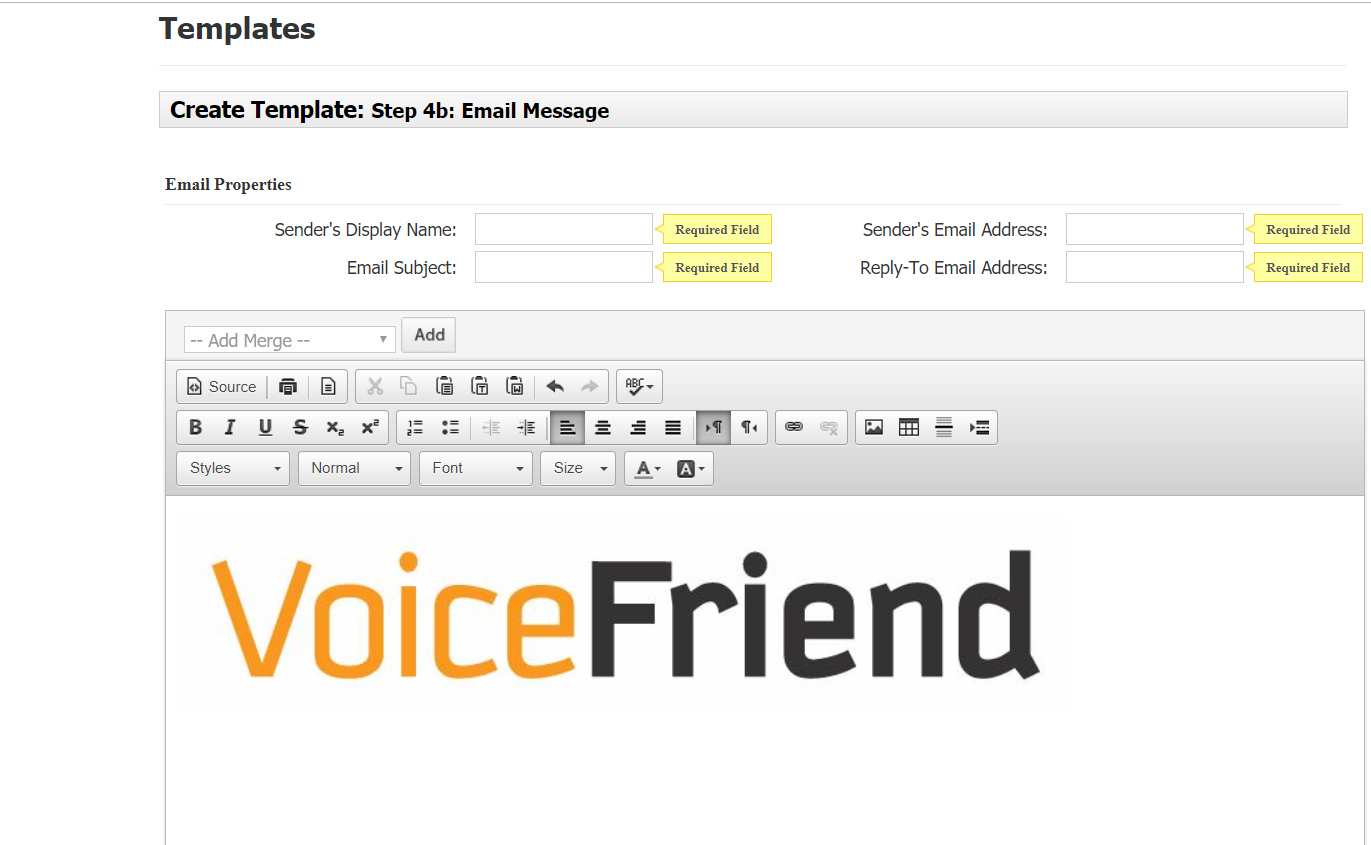
9. Your .jpeg image should appear in your email.
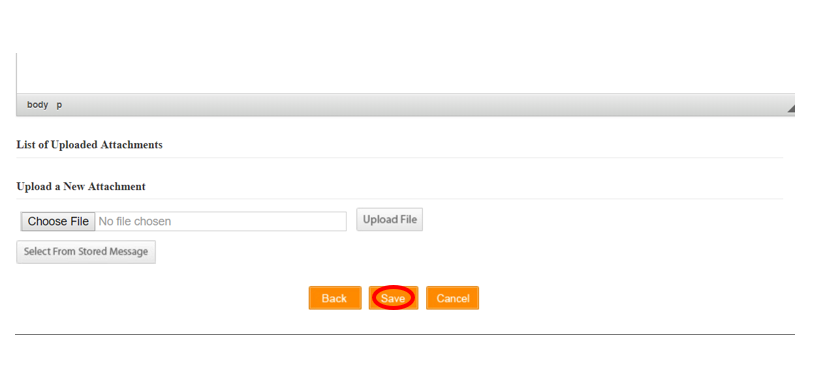
9. Click Save.
 9. Click Save.