How do I send an email with attachments?
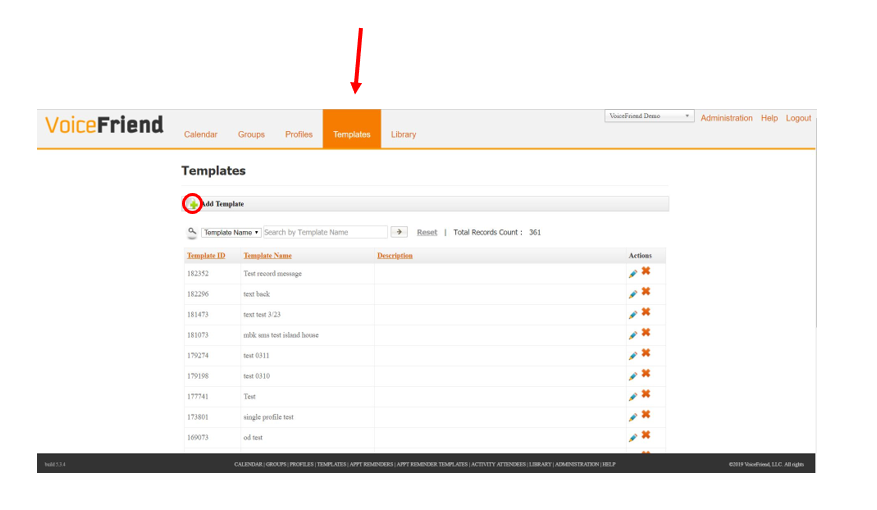
1. Go to the Templates tab and click the green plus sign to create a new template as shown in the article How do I create and send messages?
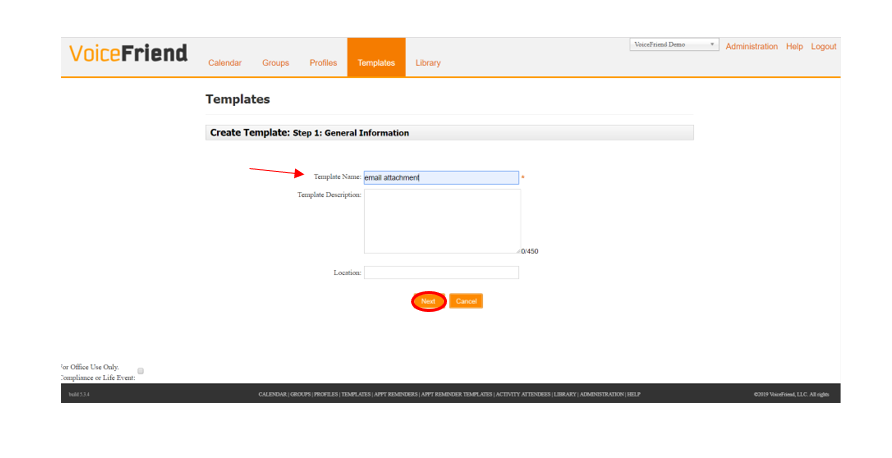
2. Name your template and click Next.
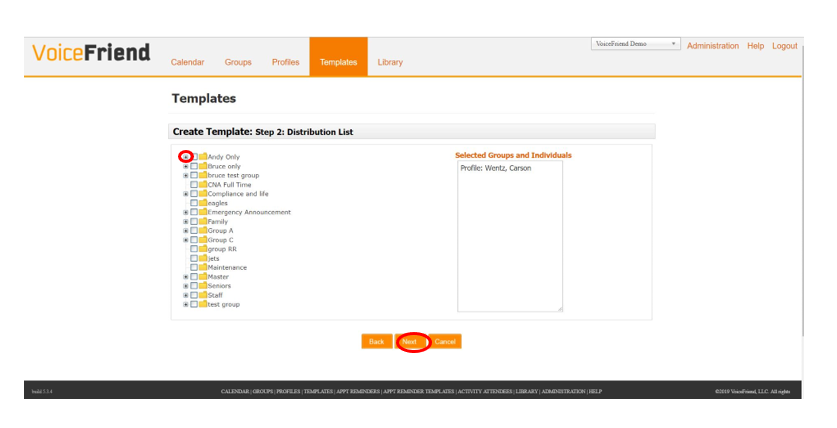
3. Select the appropriate groups or individuals you would like to send your email to. Click Next when done.
4. Select the appropriate communication preference, in this case it would be Email, and click Next.
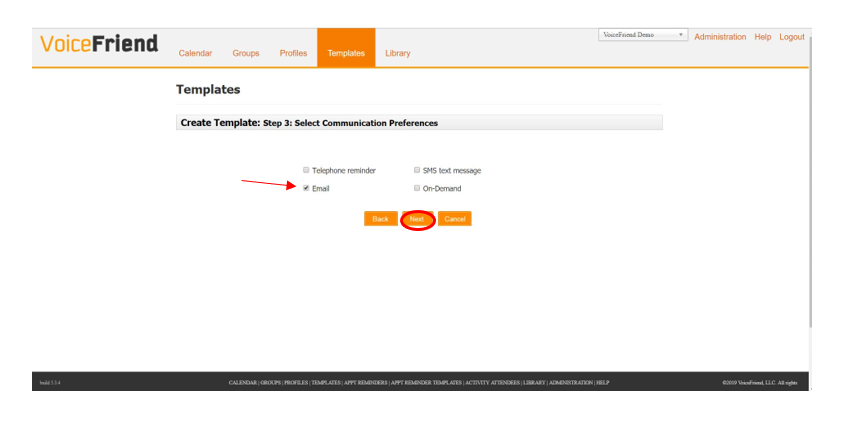
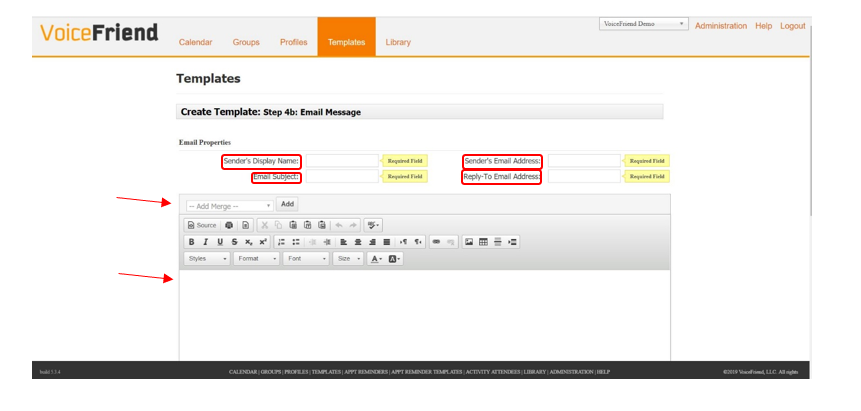
5. Fill in the required fields at the top. Senders Display Name would be your name, Email Subject would be the title of the email that the receiver will see, Sender's Email Address would be your email address, and Reply-To Email Address would be where the response to this email would be sent.
6. Type in the body of your email in the text box below, you can add merge fields if you wish to by clicking the drop down in the Add Merge field and then Add.
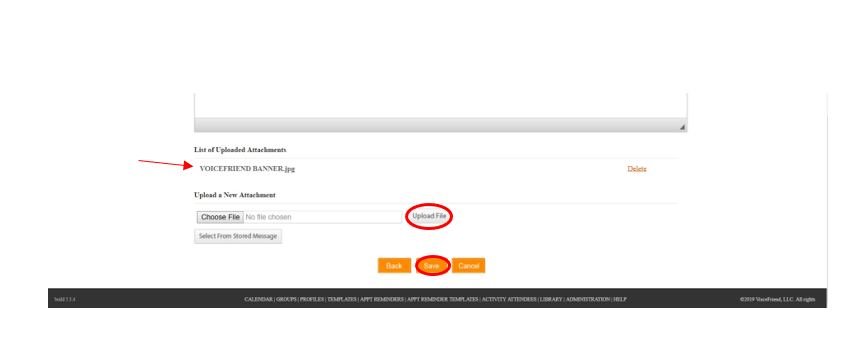
7. At the very bottom of the screen there is a section titled: Upload a New Attachment. Click the Choose File button to select the file you would like to attach to this email.
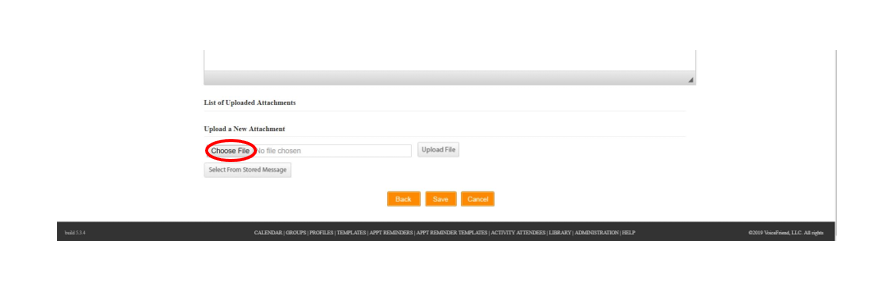
8. Once you have found the document or file you would like to attach to your email and it appears next to Choose File, click Upload File.
9. Click Save. You can add attach additional files, or you can continue with the process of scheduling your message as usual (see article How do I create and send Messages?).