How to add a staff, senior or family contact information
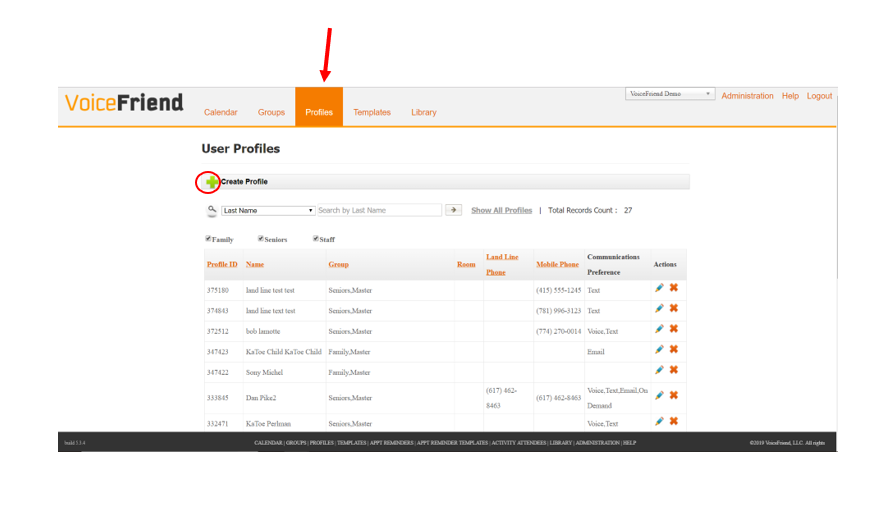
1. Click on the tab marked Profiles. Click on the green plus sign on upper left called Create Profile.
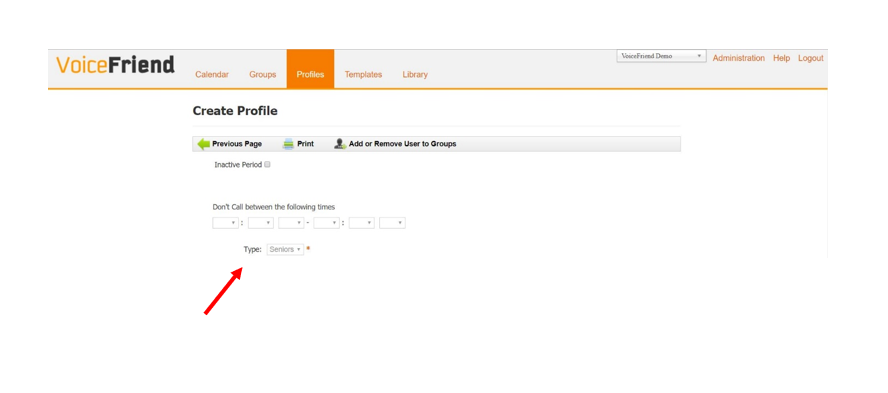
2. The default Profile Type is set for Seniors. You can use the Drop down window to change that to add a Staff or a Family profile.
3. Next add First Name and Last Name information.
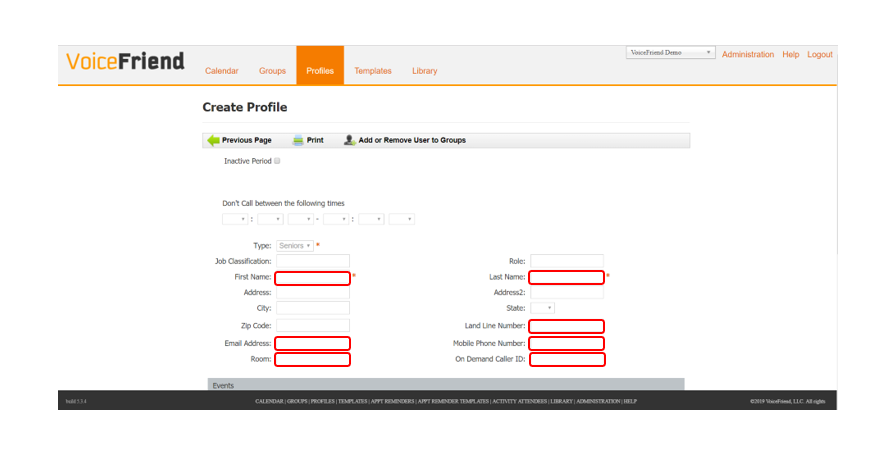
4. Type in the individual's 10 digit phone number. If the individual wants text messages, the mobile phone number must be entered in the mobile phone data field.
5. You can also add any other information that you may wish, such as Room number for residents, email address, birthday or work anniversary or staff certification, license or training due dates.
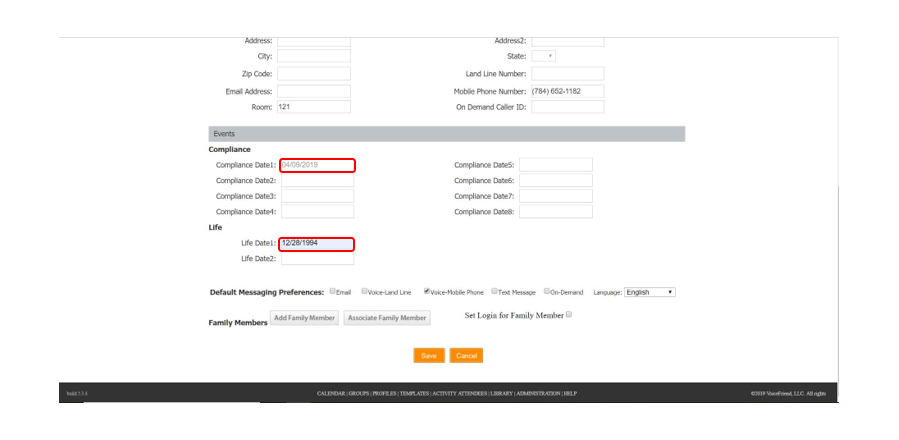
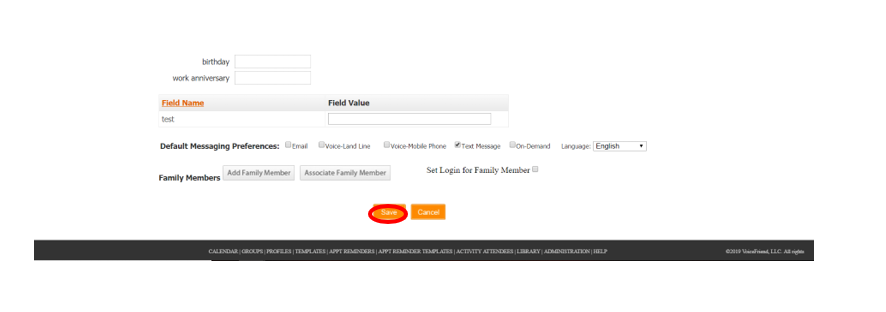
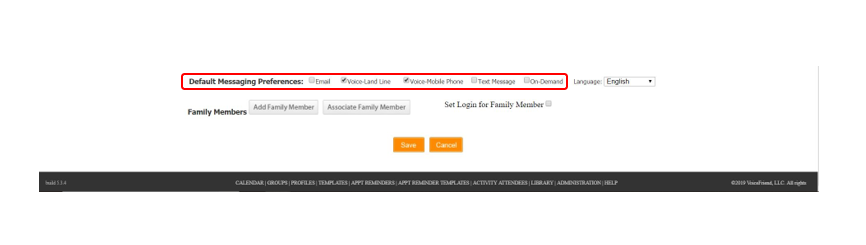
6. Once you have finished, scroll to the bottom of the page to set your Default Message Preferences. Select any of the following preferences on how the individual would like to receive their messages. They will only receive messages if the information is provided above (they will not receive an email if you have email checked off but do not have an email address provided).
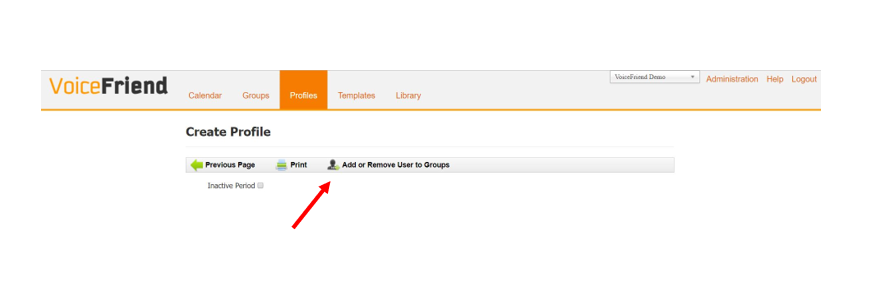
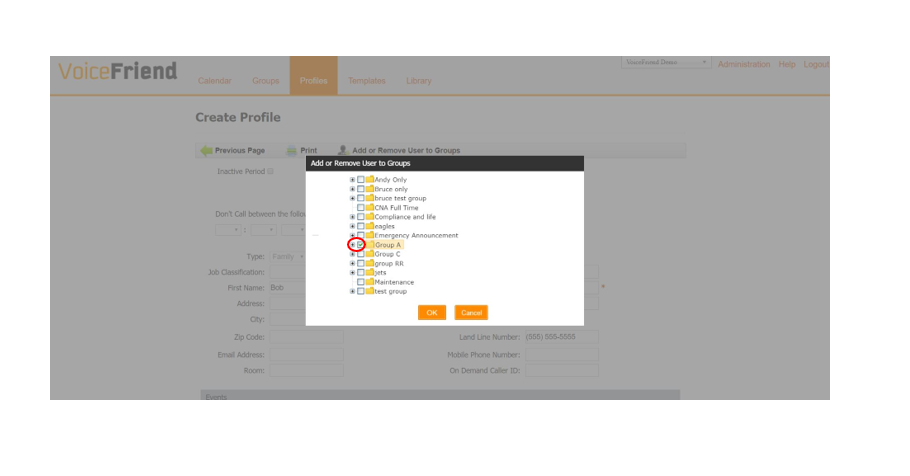
7. Next, go back up toward the top of the profile box and click on Add User to Groups and click in the boxes of the Groups you want to add this User into. Then click the OK button.
8. Go to the bottom of the screen and click Save.