How do I set up StaffAlert on my Alexa enabled device?
1. Log into your VoiceFriend account using your username and password.
2. Once into the VoiceFriend account, click the Profiles tab at the top of the screen.
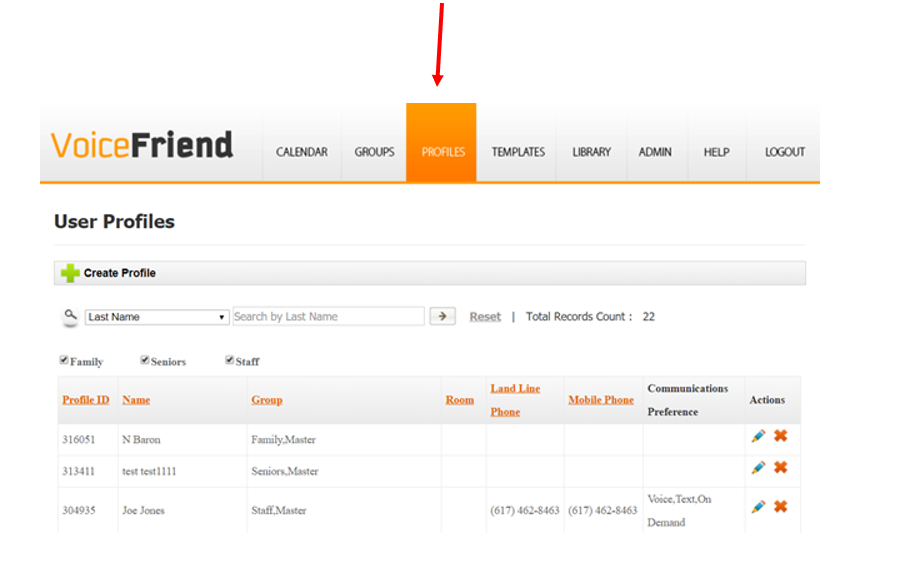
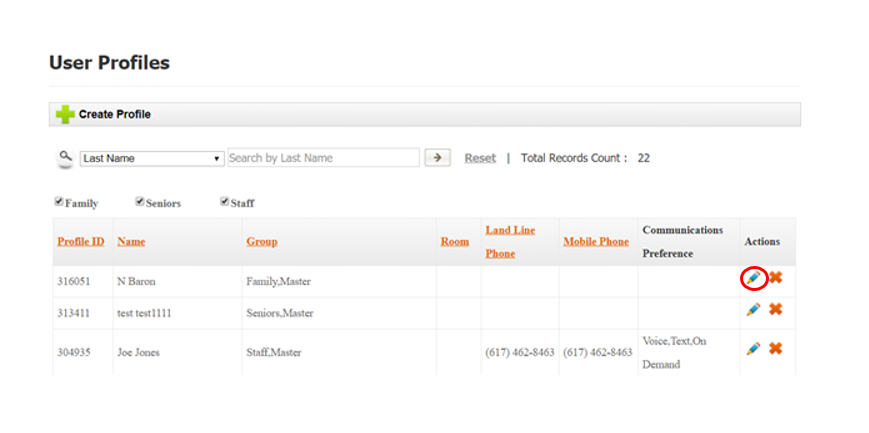
3. Once in the Profiles section, find an individual you want to enable Alexa for. Select the Pencil icon on the far right of the screen to edit the profile.
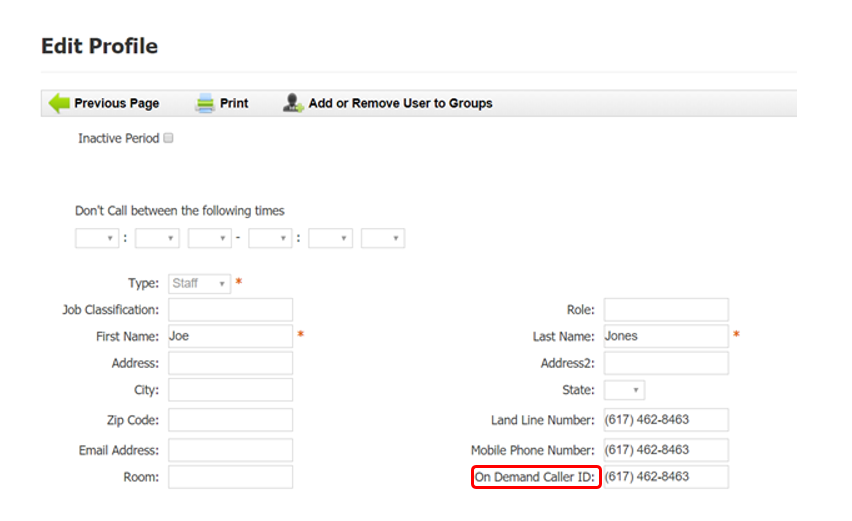
4. Under the Edit Profile section, insert a unique 10 digit number (a telephone number of the individual you want connected to Alexa is a good 10 digit number to use) in the On-Demand Caller ID field.
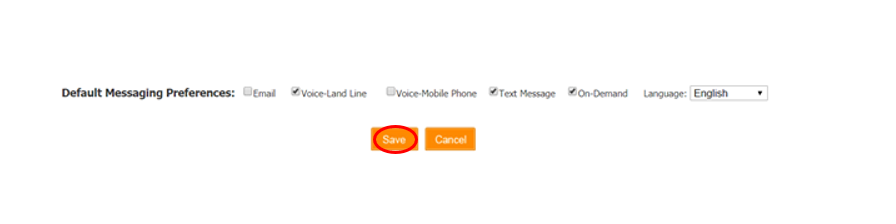
5. Select On-Demand as a default message preference towards the bottom of the Edit Profiles page.
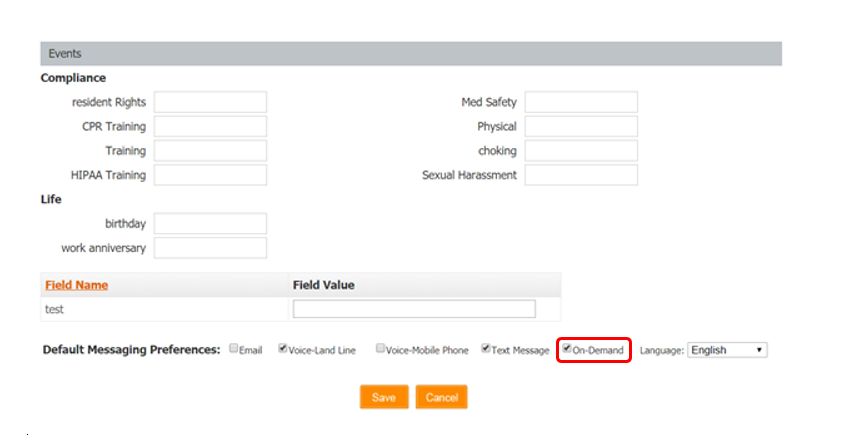
6. Select Save at the bottom of the Edit Profiles page.
7. Plug in your Amazon enabled device.
8. To enable the VoiceFriend application, there are two options. See step 9 to enable directly on the Amazon enable device using voice activation. See steps 10-13 to enable the VoiceFriend application online.
9. Instruct the Amazon enabled device using the voice command - “Alexa, enable VoiceFriend”. If you choose this method of enabling, skip to step 14.
10. Another method to enable VoiceFriend is to go to the Amazon Skills Store. (https://www.amazon.com/b?node=13727921011)
11. Once at the Amazon skills store website, type in VoiceFriend in the search bar at the top of the page.

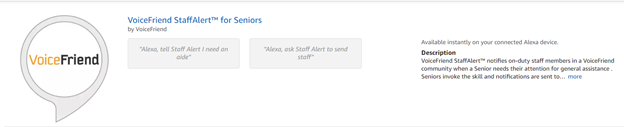
12. Select VoiceFriend StaffAlert for Seniors.
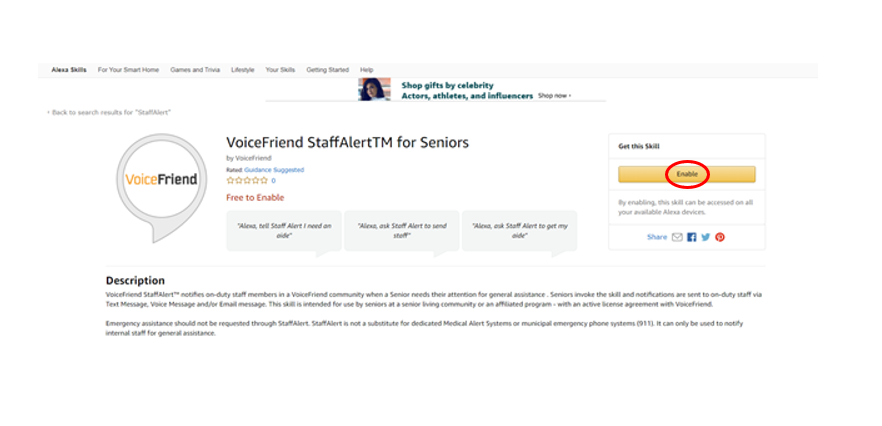
13. Select Enable.
14. Once the Staff Alert application is enabled (either by voice command or through the Amazon Skills website), the Amazon enabled device will prompt you to enter your assigned 10-digit number. Make sure this number is the same number you entered in the On-Demand Caller ID field in step 4.
15. To alert staff that assistance is needed say "Alexa, tell StaffAlert" to the Amazon enabled device. Alexa will then send an alert to the on-duty staff.