How do I set up my staff to receive StaffAlert Notifications?
1. Log into your VoiceFriend account using your username and password.
2. Click the Profiles tab at the top of the screen.
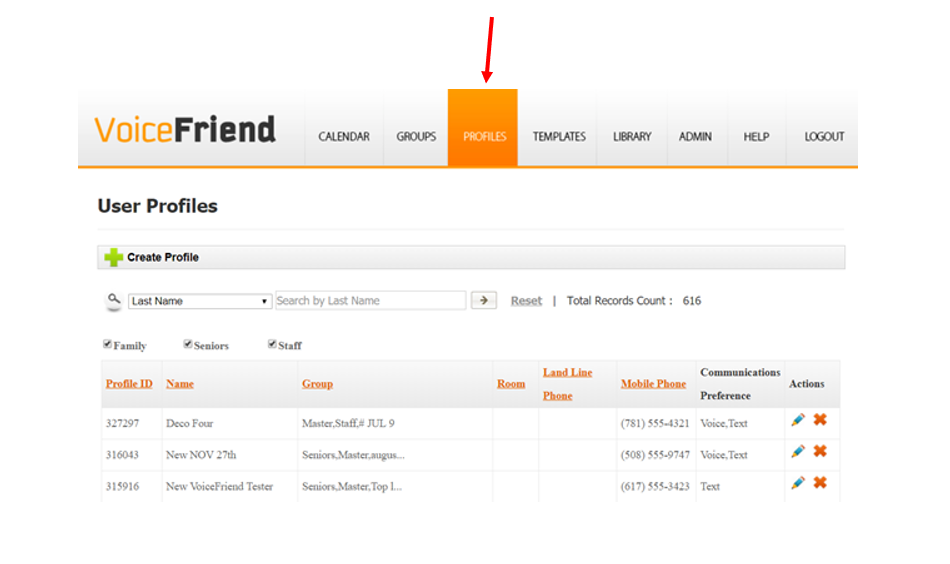
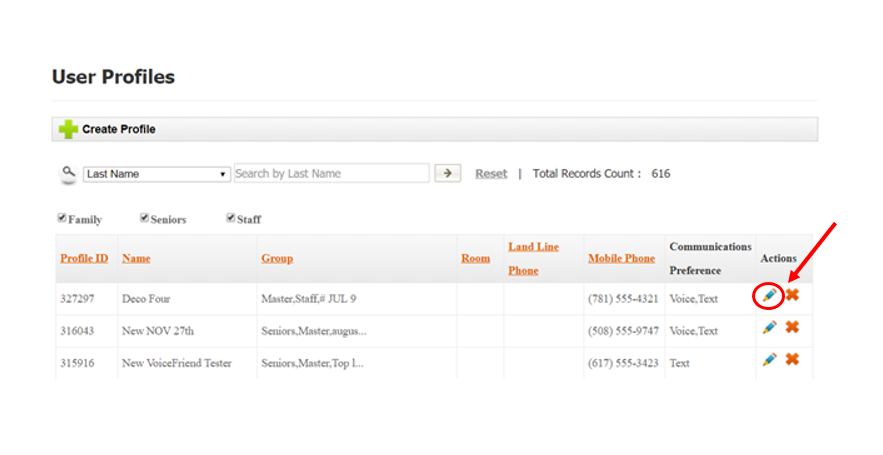
3. In the Profiles section, select the staff member you wish to receive StaffAlerts. Click on the Pencil icon on the far right of the screen to edit the profile.
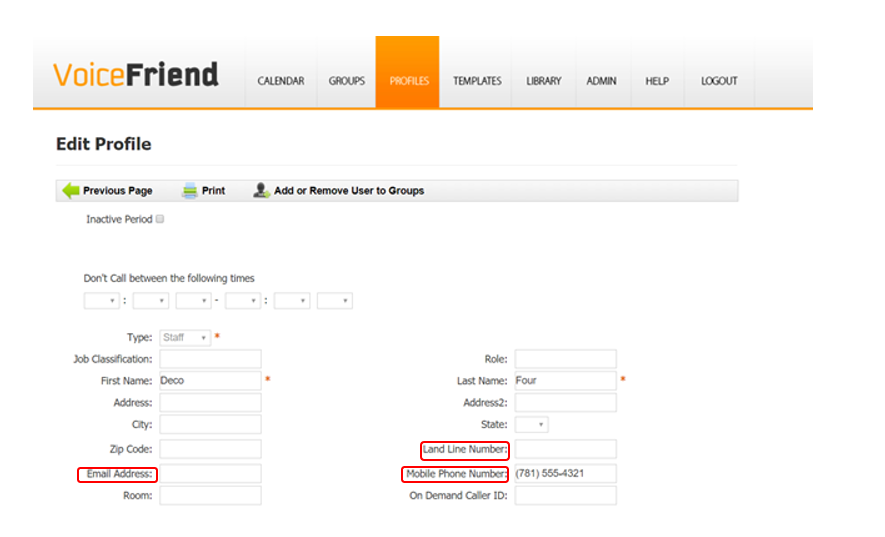
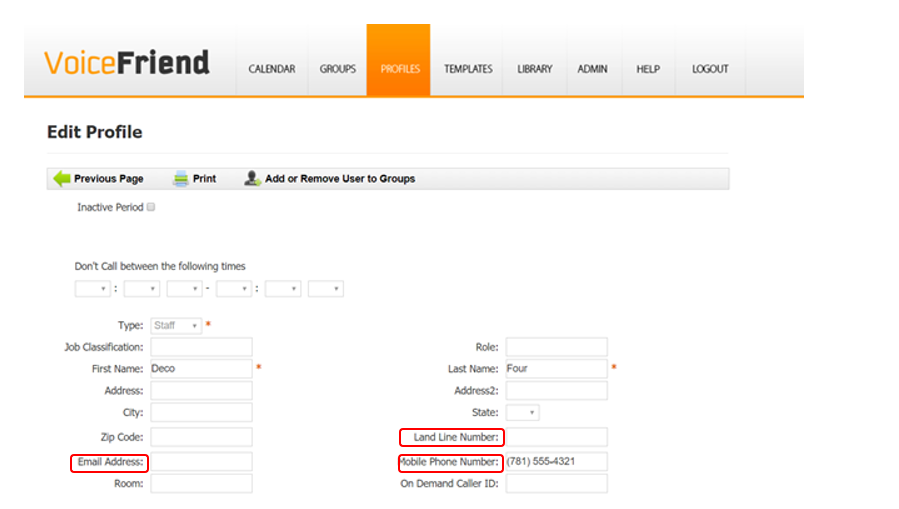
4. In the Edit Profile section, enter the preferred Email Address, Landline and/or Mobile Number to use for this person to receive StaffAlert notifications.
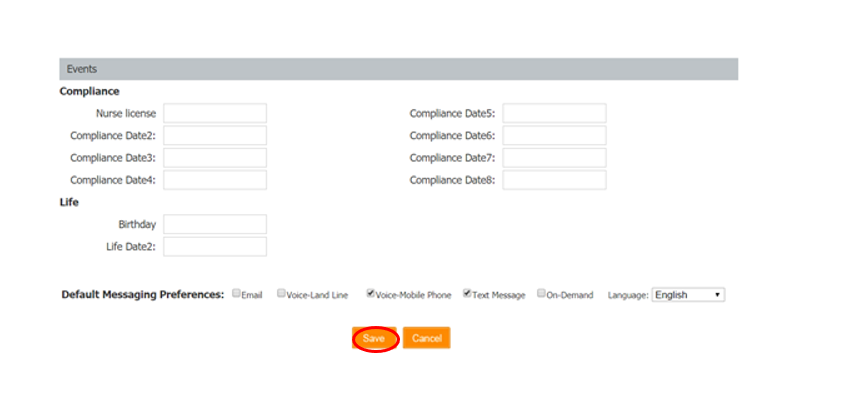
5. Select Save at the bottom of the Edit Profiles page.
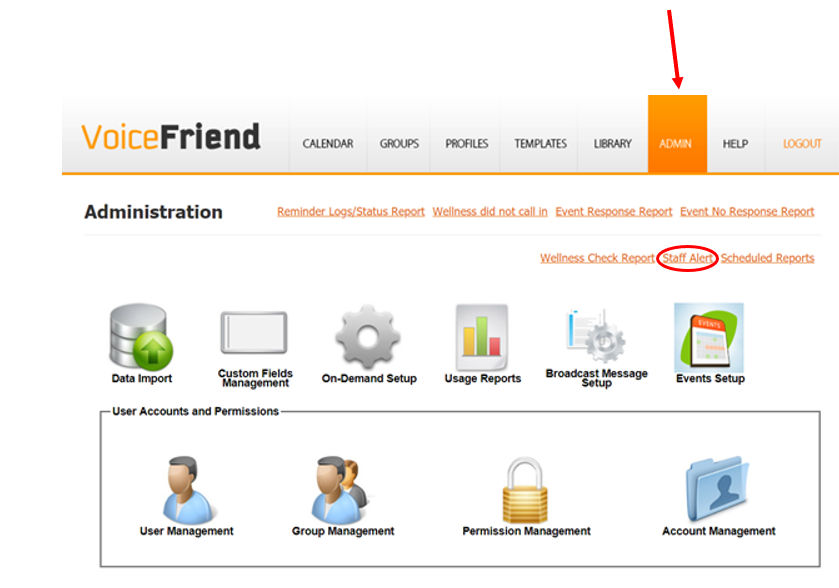
6. Go to Admin Tab and then click StaffAlert.
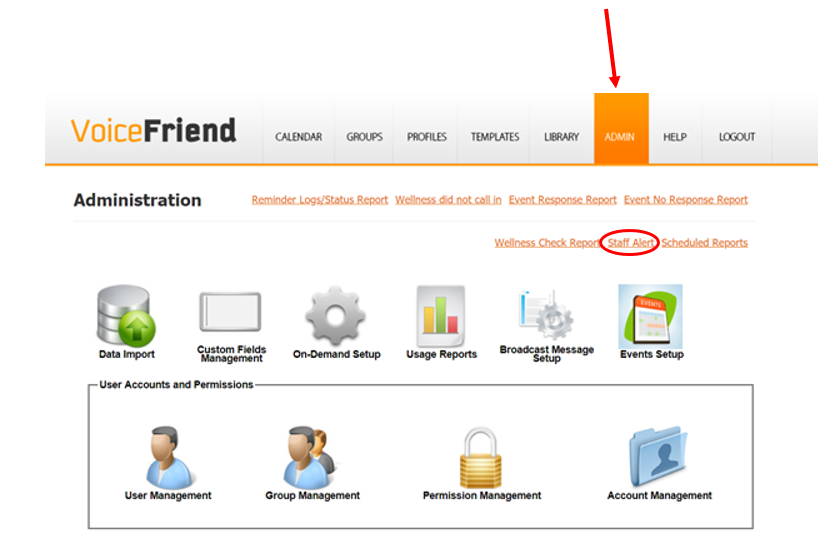
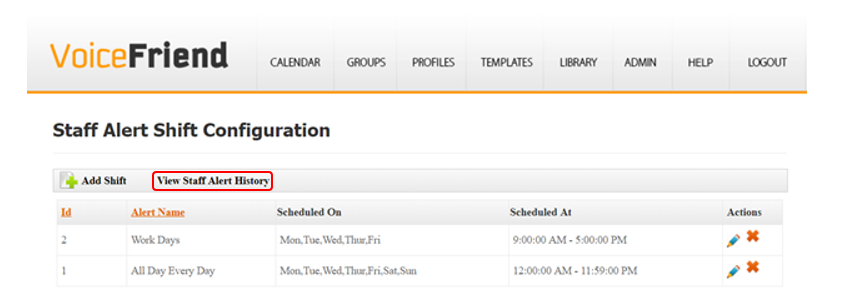
7. You can now choose which staff members will be included in specific shifts for different days throughout the week or weekend. You can name the shift, choose the schedule, (ex. Mon – Fri) the time, (ex. 8:00am -4:00pm) and control which staff members will receive the Alexa enabled alerts during selected days and times.
8. You can add or edit a shift to determine which staff members will be alerted during specific days and times.
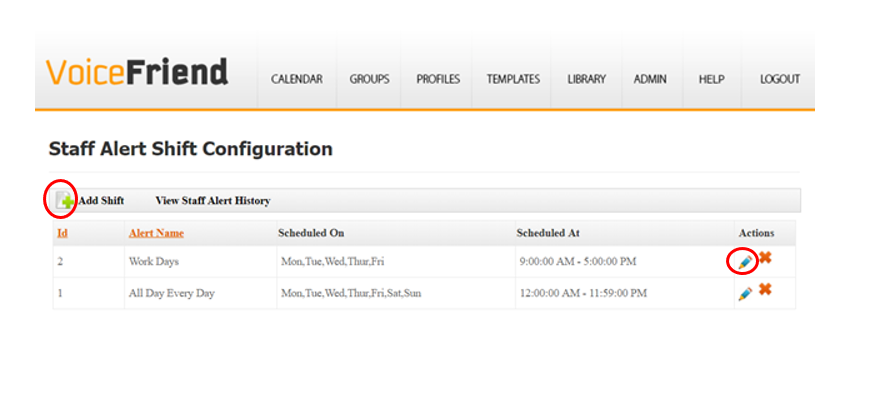
9. To create a new shift, click the Add Shift button. To edit an existing shift, click the Pencil icon on the far right of the screen on the shift you wish to edit.
10. When you create a new shift, choose a shift name and check off the days you wish to have included. You can select all day or choose a specific start and end time for your shift.
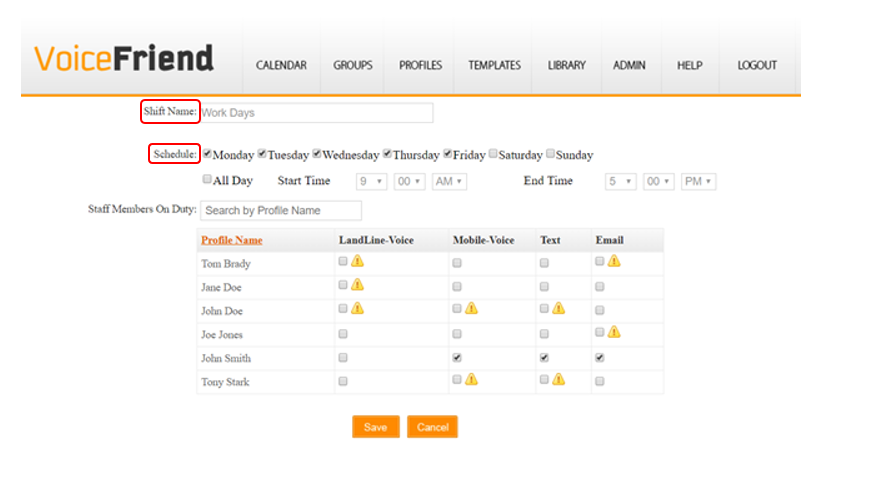
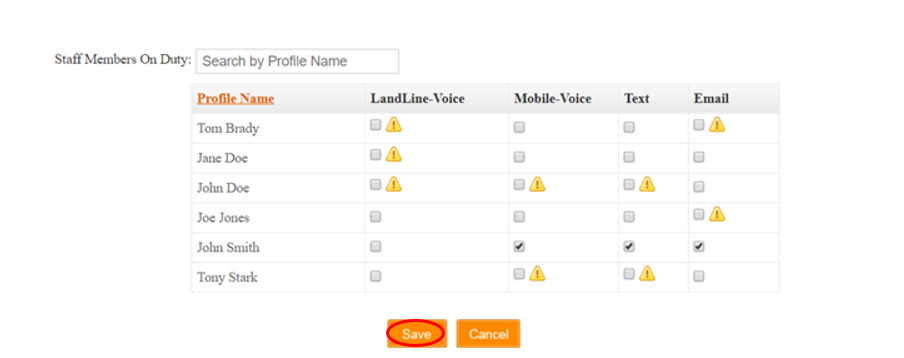
11. You can add one or more staff members to a shift. You can search for the staff member by their profile name by entering a name or partial name in the Search Staff Member on Duty data field.
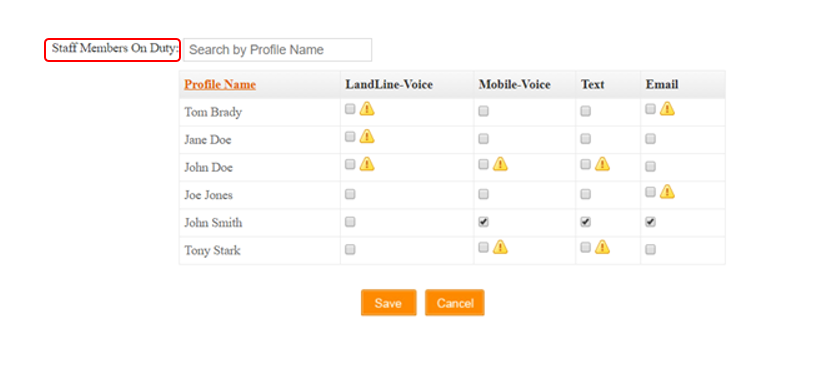
12. Select the preferred method(s) of notification for each staff member.
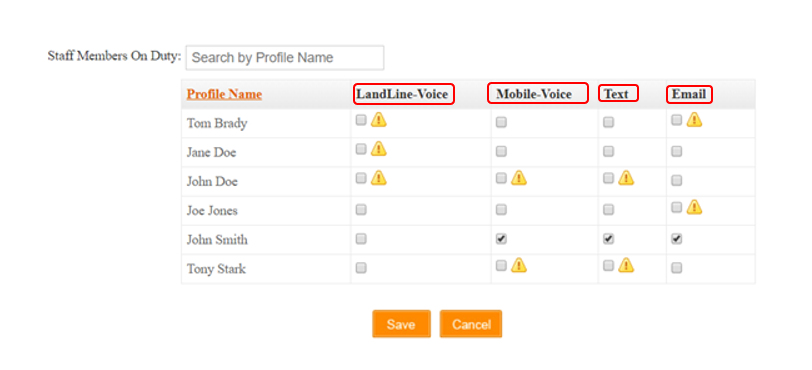
13. A yellow warning sign next to the notification option means that the person does not have a landline, mobile or email listed in their profile, and therefore would NOT get this notification in the selected communications method.
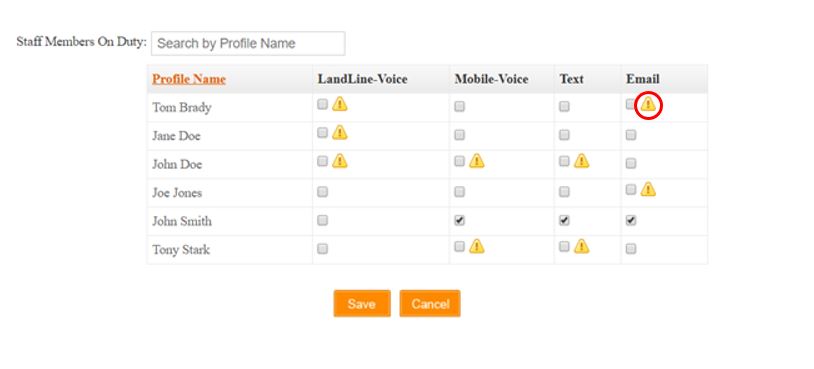
14. To clear a warning sign, go to the Profile page (see step 4 above) and enter the relevant land or mobile phone number and/or email address.
15. Once you have created your shift and have chosen the preferred method of communication for each staff member, click Save at the bottom of the screen.
16. To determine who used the StaffAlert feature and which staff members were notified and when, click on StaffAlert.
17. Select View StaffAlert History.
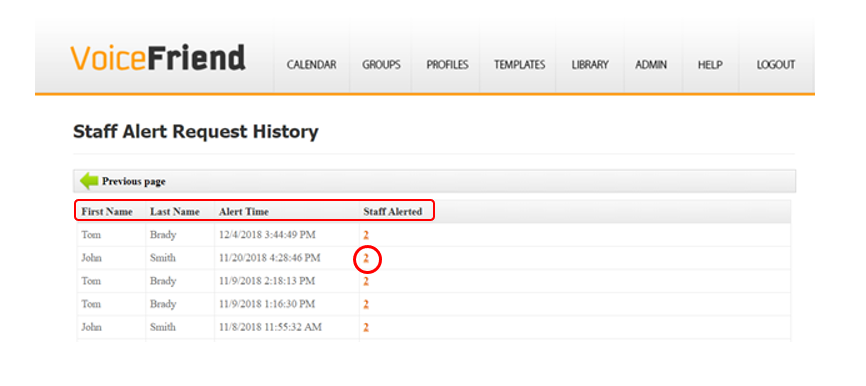
18. The StaffAlert Request History shows who requested the staff on-duty as well as what time they requested it.
19. The Staff Alerted column shows how many staff members were. Clicking on the number in that column will list which specific staff members received the notification.
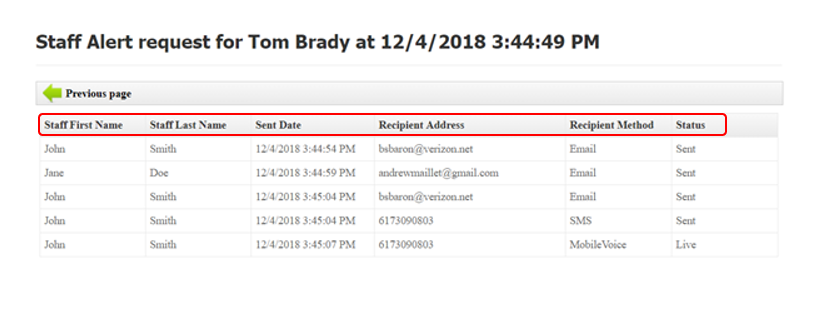
20. The Staff member or members who were set up to receive the notification are listed as well as the date and time they received the alert, how they were notified, and the status of the notification that was sent.