How do I see who received their messages?
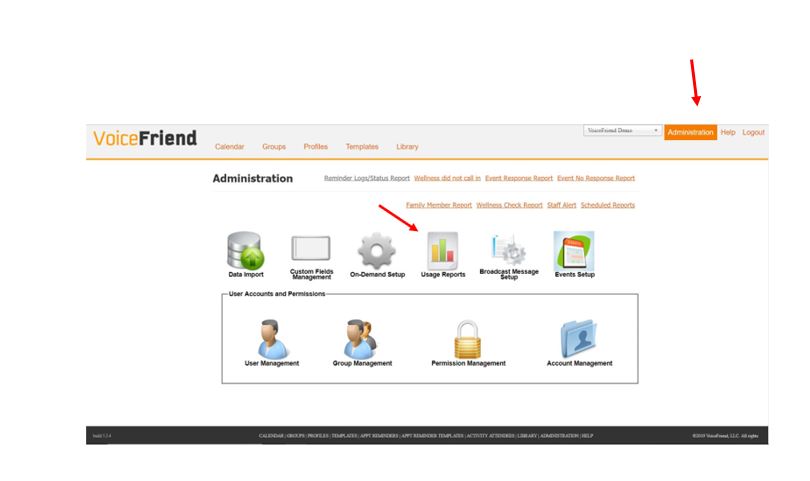
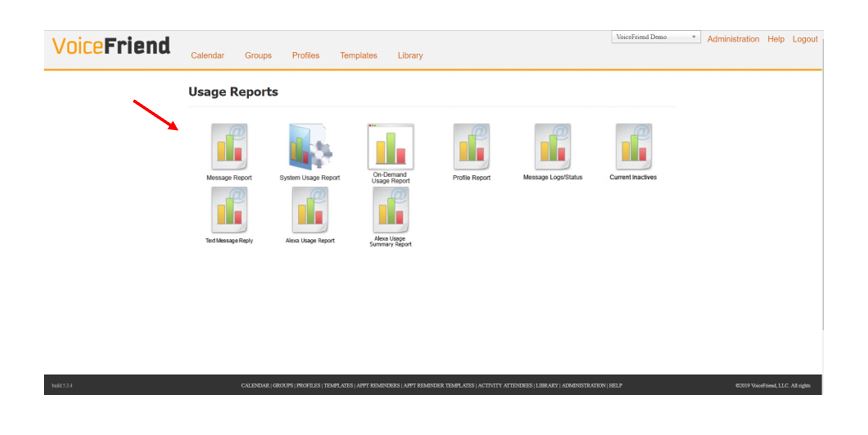
1. There are two ways to view who received their messages. The first is in the Message Report, click the Administration tab, Usage reports, then Message Report.
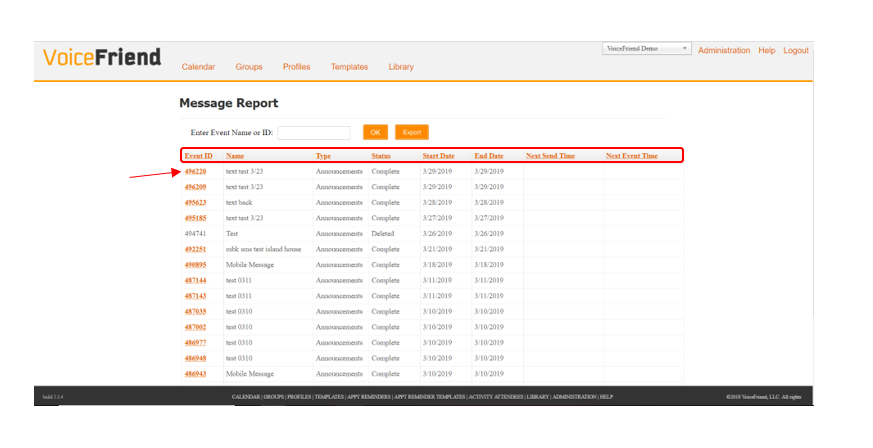
2. You can scroll down to the message you sent and see the Name of the message, Type of message it was, the Status, Start Date and End Date. You can also see if there is a Next Send Time or Next Event Time as well, if it is a recurring message.
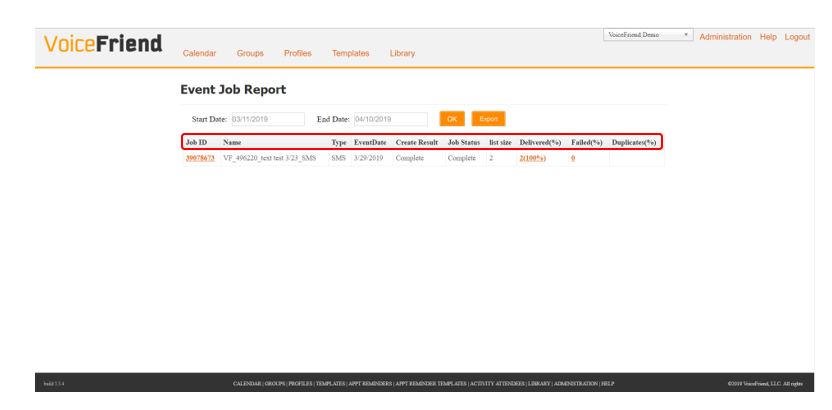
3. If you click the Event ID you can get more information about that specific message.
4. You can see the Name of the message, Type, EventDate, Result (complete or incomplete), Job Status (complete or incomplete), List Size, Delivered, Failed and Duplicate message percentages. You can also click the Job ID which will bring you to the Profile Report, which gives you information about the specific individuals who received the message.
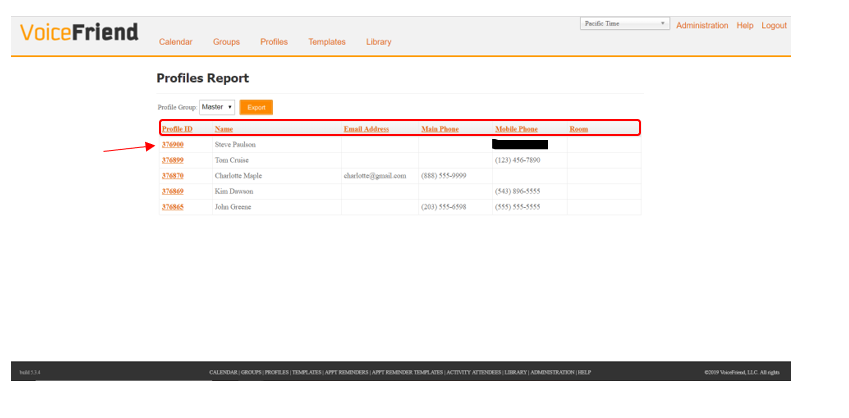
5. The second way to report message delivery is by using the Profile Report. Click the Administration tab, Usage Reports (see step 1) and then Profile Report. You can sort the listing in alphabetical or numerical order by clicking on the heading: Profile ID, Name, Email, Main Phone or Mobile Phone. If you would like to see more information about what messages a particular individual has received, click their Profile ID.
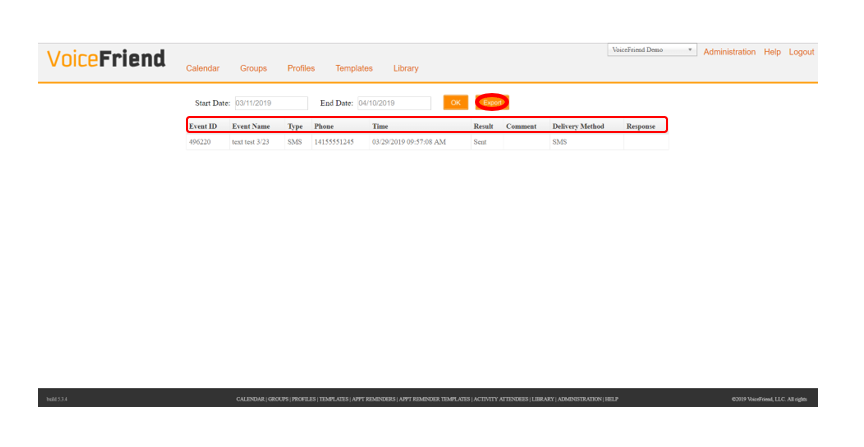
6. Clicking on the Profile ID shows more information such as the Event ID, Event Name, Type of message sent, Phone number the message was sent to, the Time the message was sent, the Result (if the message was sent), Comment, Delivery Method and Response if the person responded back.
7. If you would like to manipulate this data for either of the reports shown, you can always click the orange EXPORT button to download the report into excel.